Authentication
Public repositories clone without an account. To clone a private repository, or to push anywhere, the git host needs to know who you are. The repository’s URL decides how Phogit signs in:
- HTTPS URLs (
https://github.com/owner/repo.git) sign in with a personal access token (or a password, on hosts that still accept one). - SSH URLs (
git@github.com:owner/repo.gitorssh://…) sign in with an SSH key you create in Phogit. See SSH Keys.
You can give Phogit a token in three ways:
- Add it in Settings before you need it.
- Sign in when asked: when a server wants credentials Phogit doesn’t have, a sign-in sheet appears.
- Sign in with GitHub, where your build offers it, to get a token without copying and pasting.
Create a token on your host
A personal access token is a long random password that you create on your git host and can limit and revoke at any time. Create one with access to the repositories you want to use in Phogit, then copy it. Most hosts show it only once.
GitHub
GitHub doesn’t accept your account password for git. Use either kind of token:
- Fine-grained token (recommended). Go to github.com/settings/personal-access-tokens/new. Under Repository access, choose the repositories Phogit should reach. Under Permissions › Repository permissions, set Contents to Read and write. (Read-only is enough if you’ll only clone and pull.)
- Classic token. Go to github.com/settings/tokens/new and tick the
reposcope. Phogit’s Create a Token on github.com button opens this page withrepoalready ticked.
Use your GitHub username as the username.
For repositories owned by an organization, the organization may need to approve fine-grained tokens, or you may need to authorize a classic token for single sign-on (Configure SSO next to the token on GitHub).
GitLab
Go to gitlab.com/-/user_settings/personal_access_tokens (on a self-managed GitLab, Preferences › Access tokens). Add a token with these scopes:
read_repositoryto clone and pull;write_repositoryto push.
Use your GitLab username as the username.
Bitbucket
Bitbucket Cloud now uses API tokens; app passwords were retired in 2026. Go to id.atlassian.com/manage-profile/security/api-tokens, choose Create API token with scopes, pick Bitbucket as the app, and select:
read:repository:bitbucketto clone and pull;write:repository:bitbucketas well, to push.
For the username, use your Bitbucket username (shown in Bitbucket’s personal settings; it’s case-sensitive, and it’s not your email address), or Atlassian’s generic x-bitbucket-api-token-auth.
Gitea, Forgejo, Codeberg and others
On Gitea-based hosts such as Codeberg, go to Settings › Applications and generate a token with read and write access to repositories. Use your username on that host.
Any other HTTPS git host works the same way: create a token (or app password) as that host’s documentation describes, and use it in place of your password.
Add a token in Settings
- Open Settings › Accounts & Tokens.
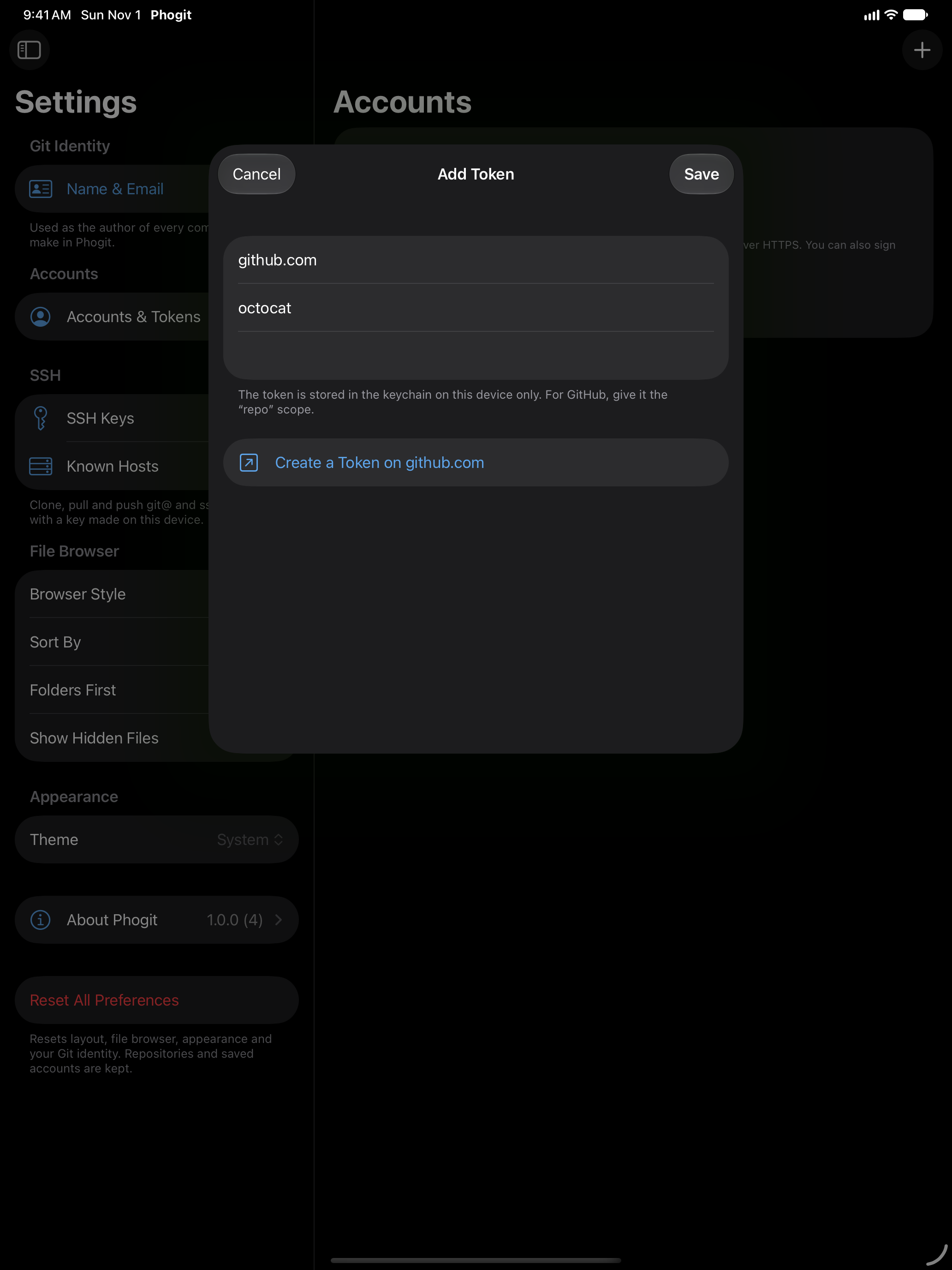
- Tap Add Token (or +).
- Enter the Host (it starts as
github.com; change it togitlab.com,git.example.comand so on), your Username and the Personal Access Token. - Tap Save.
For github.com, gitlab.com, bitbucket.org and codeberg.org, the sheet also has a Create a Token on … button that opens the host’s token page.


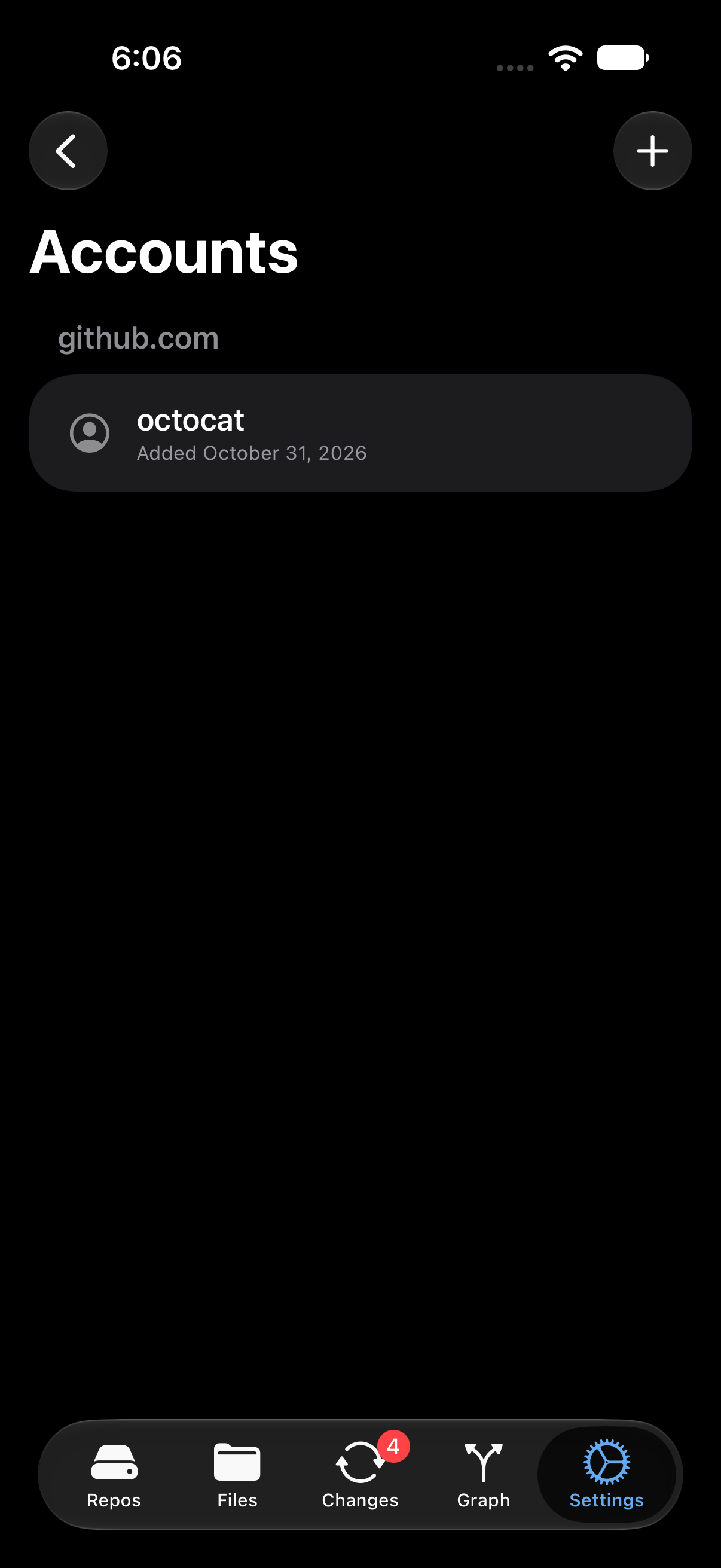
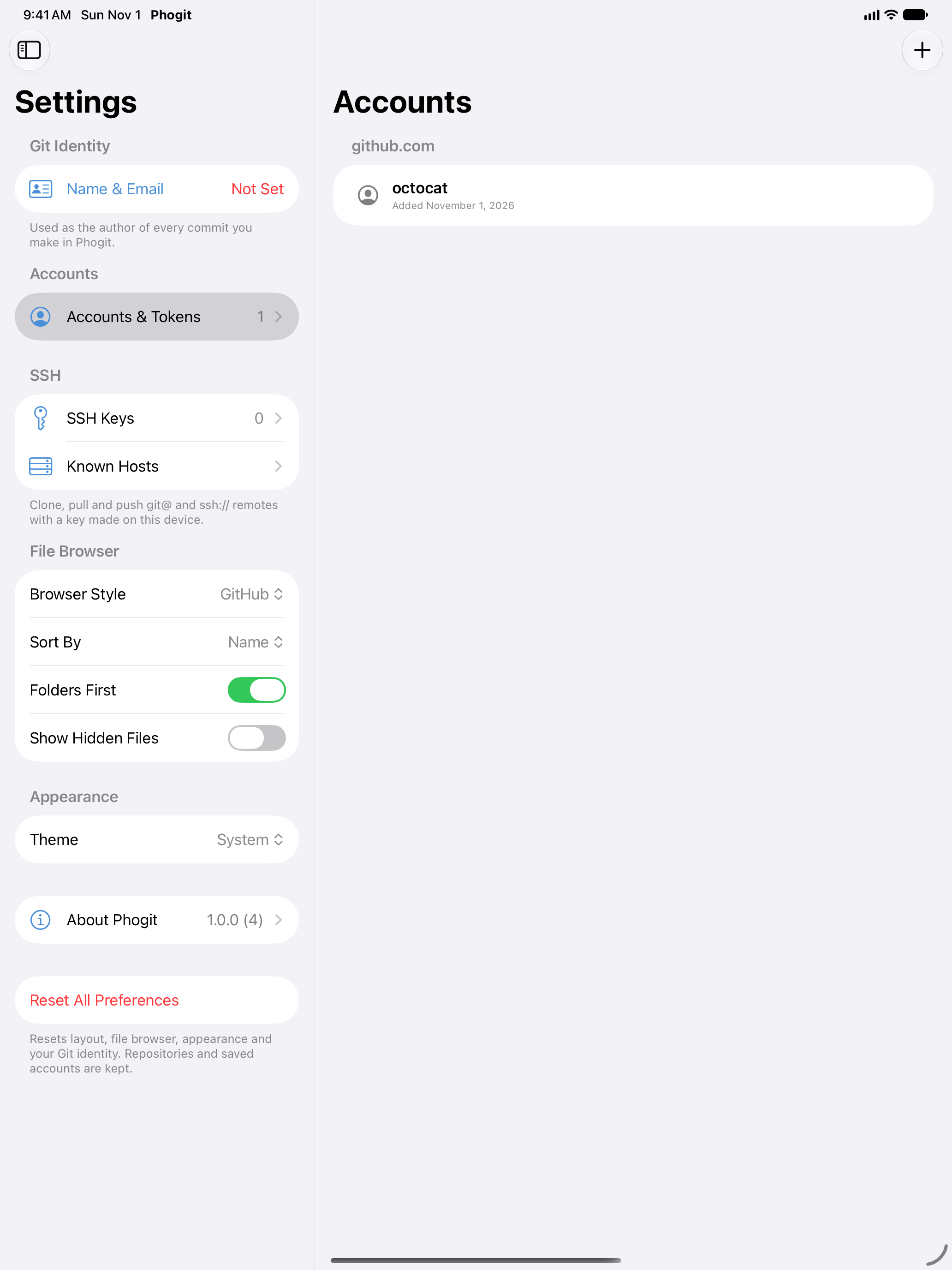
Saved credentials are grouped by host. Phogit uses them automatically whenever a repository’s URL points at that host.
More than one account on a host
You can save several accounts for the same host, for example a personal and a work GitHub account. The account you saved most recently becomes the host’s default and is tried first; Accounts & Tokens marks it Default. To change it, swipe right on another account (or long-press it) and choose Use as Default.
To make one repository sign in with a different account, see Choose the account for a remote.
Sign in when asked
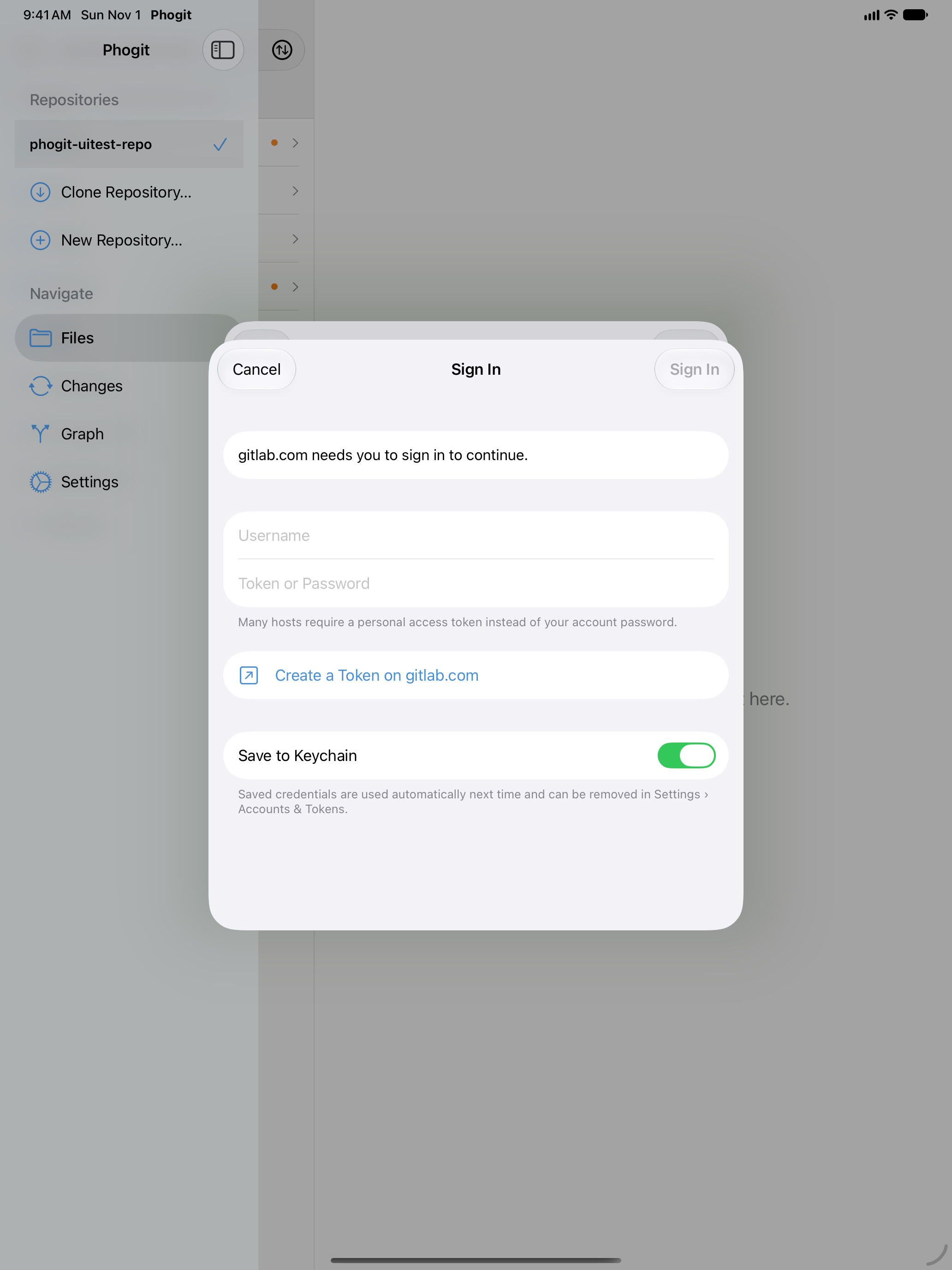
If you clone, fetch, pull or push and the server needs credentials Phogit doesn’t have, a Sign In sheet appears saying which server is asking. Enter your username and token (for GitHub, a personal access token, never your account password) and tap Sign In. For github.com, gitlab.com, bitbucket.org and codeberg.org, a Create a Token on … button opens the host’s token page.
Save to Keychain is on by default, so you won’t be asked again for that host. Turn it off to use the credential for this sign-in only.



Sign in with GitHub
Where your build of Phogit offers it, Settings › Accounts & Tokens has a Sign In with GitHub button. It uses GitHub’s device sign-in, so you never type your password into Phogit:
- Tap Sign In with GitHub. Phogit shows a short code.
- Tap Open GitHub. Phogit copies the code and opens github.com/login/device.
- Paste the code, sign in to GitHub if needed, and approve Phogit.
- Back in Phogit, you’ll see Signed in as your GitHub username. Tap Done.
The token GitHub issues is saved in the Keychain like any other credential.
How your credentials are stored
Tokens and passwords are stored in the iOS Keychain, marked “this device only”:
- they aren’t synced to iCloud Keychain;
- they aren’t included in backups that can be restored to another device;
- they’re sent only to the host they belong to, and never to us.
SSH keys are kept on the device too; see Create a Key. The Privacy Policy has the details.
Remove a credential
In Settings › Accounts & Tokens, swipe left on an account and tap Remove (or long-press it and choose Remove).


Removing a credential from Phogit doesn’t cancel it on the server. When you no longer need a token, revoke it on the host as well: GitHub tokens, GitHub authorized apps (for Sign in with GitHub), GitLab tokens or Atlassian API tokens. A revoked token stops working everywhere.
SSH keys
With SSH, Phogit signs in with a key instead of a token. A key has two halves: a private key that stays on your device, and a public key that you add to your account on the host. Use SSH for any repository whose URL starts with git@ or ssh://.
Create a key
- Open Settings › SSH Keys.
- Tap Create a key (or +).
- Enter a Name, such as
Work iPad. Phogit adds it to the end of the public key, so you can tell your keys apart on the host. - Choose the Type: Ed25519 or Secure Enclave.
- Tap Create. Phogit opens the new key, ready to copy.
Ed25519 is the standard modern SSH key, the kind most hosts’ guides tell you to make. Phogit keeps its private key in the iOS Keychain, marked “this device only”, like your tokens.
A Secure Enclave key is made inside the Secure Enclave, a separate security chip in your iPhone or iPad:
- The private key never leaves the chip. Not even Phogit can read or copy it; Phogit can only ask the chip to sign in with it.
- Face ID or Touch ID confirms each use. Each time Phogit signs in with the key, you’re asked.
- It can’t move to another device. If you lose, replace or erase your device, the key is gone. Create a new key on the new device and add it to your hosts.
Secure Enclave keys are listed as Secure Enclave (ECDSA P-256). The Type choice appears only on devices with a Secure Enclave.
Neither kind of key syncs to iCloud or comes back from a backup on another device, so each device needs its own key. When you stop using a device, remove its public key from your hosts.
Phogit can’t import a key you already have, such as ~/.ssh/id_ed25519 from your computer. Create one in Phogit and add it to your host next to your other keys; hosts accept several keys per account.
Add the public key to your host
Tap a key in Settings › SSH Keys to open it. Under Public key is the whole key, starting with ssh-ed25519 or ecdsa-sha2-nistp256, and two buttons:
- Copy public key copies it to the clipboard.
- Share public key opens the share sheet, for example to AirDrop it to your computer.
The public key is safe to share. Only the private key can sign in, and it never leaves the device.
Under Where to add it, buttons such as Open GitHub’s SSH key settings take you to the right page on GitHub, GitLab, Bitbucket and Codeberg. Sign in, add a new SSH key, and paste the public key.
| Host | Where to paste the key |
|---|---|
| GitHub | Settings › SSH and GPG keys, at github.com/settings/keys. Choose New SSH key and leave the key type as Authentication Key. |
| GitLab | Edit profile › SSH keys, at gitlab.com/-/user_settings/ssh_keys. On a self-managed GitLab, use the same page on your server. |
| Bitbucket | Personal settings › SSH keys, at bitbucket.org/account/settings/ssh-keys. |
| Codeberg | Settings › SSH / GPG keys, at codeberg.org/user/settings/keys. Other Gitea and Forgejo servers have the same page. |
For any other server, add the public key to ~/.ssh/authorized_keys for your account there.
To delete a key, open it, tap Delete key and confirm. Swiping left on a key in the list and tapping Delete removes it straight away, without asking. Deleting a key in Phogit doesn’t remove it from your hosts, so remove it there too.
Clone over SSH
Copy the repository’s SSH URL from your host (on GitHub, Code › SSH) and paste it into Clone Repository. Phogit accepts both forms git does:
git@github.com:owner/repo.git, the form hosts show;ssh://git@git.example.com/owner/repo.git, which can also name a port, as inssh://git@git.example.com:2222/owner/repo.git. Thegit+ssh://andssh+git://spellings work too.
If the address doesn’t name a user, Phogit signs in as git, which is what hosts expect.
No key yet? Tap Clone anyway. Phogit says you need an SSH key to clone over SSH and offers Create a key. Tap it, and Phogit makes an Ed25519 key called Phogit and shows its public key, with Copy public key, Share public key and, for GitHub, GitLab, Bitbucket and Codeberg, a link to that host’s SSH key settings. Add the key on the host, then tap Clone again.
To switch a repository you cloned over HTTPS to SSH, open Remotes… in the sync menu, choose Edit… on the remote and paste its SSH URL. SSH remotes have no Account picker: Phogit signs in to them with your keys from Settings › SSH Keys. See Remotes.
Which key Phogit uses
When a server asks for a key, Phogit offers yours one at a time until the server accepts one:
- the key that last worked for that server;
- your Ed25519 keys, newest first;
- your Secure Enclave keys, newest first.
Each Secure Enclave key Phogit offers asks for Face ID or Touch ID, even if the server then turns it down. Phogit remembers which key worked for each server and starts with it next time, so it usually takes one try.
Trusting SSH servers
Every SSH server has a host key that proves it’s the server you meant to reach. Its fingerprint is a short summary of the key, such as SHA256:+DiY3wvvV6TuJJhbpZisF/zLDA0zPMSvHdkr4UvCOqU (GitHub’s Ed25519 key).
The first connection
The first time you connect to a server, Phogit asks Trust this server? before it signs in:
Phogit hasn’t connected to git.example.com before. Check that this fingerprint matches the one the server’s owner publishes, and trust it only if it does.
The sheet shows the Server, the Key type (such as Ed25519 or ECDSA P-256) and the Fingerprint. Compare the fingerprint with the one the server’s owner publishes. For a server you run yourself, ssh-keygen -lf /etc/ssh/ssh_host_ed25519_key.pub on the server prints it. Then:
- tap Trust to remember the key and connect;
- tap Cancel if the fingerprint doesn’t match or you can’t check it. Phogit doesn’t connect, and asks again next time.
If a server you already trust starts offering another type of key as well, Phogit asks again and says which key you already trust.
Built-in hosts
Phogit knows the published keys of github.com, gitlab.com, bitbucket.org and codeberg.org (and ssh.github.com on port 443), so it never asks about them. It checks each connection against the keys the host publishes and refuses a key that doesn’t match.
Settings › Known Hosts
Settings › Known Hosts has two lists:
- Trusted servers: each server you’ve trusted, with its key type and fingerprint. A server on a port other than 22 shows as
[host]:port. - Built-in keys: the four hosts above.
To forget a server, swipe left on it and tap Delete, or long-press it and choose Remove. Phogit asks about it again the next time you connect.
If Phogit can’t read its list of trusted servers, Known Hosts says so:
Phogit can’t read its list of trusted servers, so it won’t connect to servers it doesn’t have built-in keys for. Reset the list to start again; Phogit then asks about each server.
Tap Reset list below the message to delete the list. The built-in hosts keep working, and Phogit asks about every other server again as you connect to it.
When a server’s key changes
If a server you trusted presents a different key, Phogit refuses to connect:
git.example.com’s key has changed since you trusted it. Someone may be intercepting the connection, or the server has a new key. If you expect the change, remove git.example.com in Settings › Known Hosts and connect again.
There are two possible reasons. Either the server’s owner replaced its key, for example after reinstalling the server, or something between you and the server is pretending to be it. Before you remove the server to clear the message, find out which it is:
- Check with whoever runs the server that the key changed, and get the new fingerprint.
- Remove the server in Settings › Known Hosts.
- Connect again, and compare the fingerprint before you tap Trust.
The built-in hosts can’t be removed: a key that doesn’t match the published ones is always refused. If that happens, try another network and check the host’s status page.
Servers that only offer RSA
Phogit supports Ed25519 and ECDSA keys, not RSA, for both your keys and the server’s. GitHub, GitLab, Bitbucket, Codeberg and current OpenSSH servers all offer one of those. Azure DevOps and very old servers offer only RSA, so Phogit can’t connect to them over SSH. Use the repository’s HTTPS URL with a token there instead.
Phogit signs in to SSH servers with keys only. It doesn’t support SSH passwords, ~/.ssh/config settings or jump hosts.
Troubleshooting
Tokens and HTTPS
- “The server rejected your credentials.”
- The username or token is wrong, expired or revoked, or the token lacks the permission for what you tried (for example, pushing with a read-only token). Remove the account in Settings › Accounts & Tokens and add a fresh token.
- The server rejected a push, citing permissions or a protected branch.
- Your token can read but not write, or the branch is protected on the host. Check the token’s permissions, or push to a different branch.
- “This server only accepts SSH keys. Use the repository’s SSH URL with a key from Settings › SSH Keys.”
- The server won’t take a token. Switch the remote to the repository’s SSH URL (Remotes… › Edit…) and add a key to your account there.
- “This server needs a username and token, not an SSH key.”
-
The remote’s URL starts with
https://, so it needs a token. Add one in Settings › Accounts & Tokens, or switch the remote to the repository’s SSH URL.
SSH
In these messages, host is the server’s name, or [host]:port for a server on a port other than 22.
Signing in
- “You don’t have an SSH key yet. Create one in Settings › SSH Keys, add its public key to your account on host, then try again.”
- Create a key, add its public key to your account on the host, and try again.
- “host didn’t accept your SSH keys. Add your public key to your account on host (Settings › SSH Keys shows it), then try again.”
-
The server has none of your public keys, or the account that has the key can’t reach this repository. Check that you added the key to the right account, that on GitHub it’s an Authentication Key, and that the user in the URL is right (usually
git). - “Face ID or Touch ID was cancelled, so Phogit didn’t sign in to host with your Secure Enclave key.”
- Try again and confirm with Face ID or Touch ID. If the server doesn’t have that key, add it there, or delete keys you don’t use so Phogit stops offering them.
- “Phogit couldn’t use your SSH key to sign in to host: reason” or “Phogit couldn’t read your SSH keys to sign in to host: reason”
- Keys can’t be read while the device is locked, so unlock it and try again. If the reason says to create a new key, do that and add it to your host.
- “host doesn’t accept SSH keys for sign-in. Use the repository’s HTTPS URL instead.”
- The server wants a password or another sign-in method that Phogit doesn’t support over SSH. Use the HTTPS URL with a token.
Trusting the server
- “You didn’t trust host’s key, so Phogit didn’t connect.”
- You tapped Cancel on Trust this server?. Try again, and tap Trust if the fingerprint matches the one the server’s owner publishes. See The first connection.
- “Phogit stopped waiting for you to decide whether to trust host. Try again.”
- The Trust this server? sheet went unanswered for too long. Try again and answer it.
- “Phogit hasn’t connected to host before and couldn’t ask whether to trust its key (fingerprint), so it didn’t connect.”
- Phogit couldn’t show the trust prompt. Try again with Phogit open.
- “host’s key has changed since you trusted it. Someone may be intercepting the connection, or the server has a new key. If you expect the change, remove host in Settings › Known Hosts and connect again.”
- Check with whoever runs the server before you remove it. See When a server’s key changes.
- “host sent a key that doesn’t match the keys it publishes. Someone may be intercepting the connection, so Phogit didn’t connect.”
- A built-in host sent the wrong key. Try another network and check the host’s status page.
- “host switched to a different key in the middle of the connection, so Phogit stopped. Someone may be intercepting the connection.”
- Treat it like a changed key: try another network, and check with whoever runs the server.
- “Phogit can’t read its list of trusted servers, so it can’t check host’s key and didn’t connect. Reset the list in Settings › Known Hosts, then connect again.”
- Tap Reset list in Settings › Known Hosts. Phogit then asks you to trust each server again.
Connecting
- “Phogit and host have no SSH algorithm in common. Phogit supports Ed25519 and ECDSA keys but not RSA, so if host only offers RSA, use the repository’s HTTPS URL instead.”
- The server only offers RSA. Use HTTPS for it. See Servers that only offer RSA.
- “Couldn’t connect to host on port port: reason.”
-
Check the address and your connection. Some networks block port 22, which SSH uses. For GitHub,
ssh://git@ssh.github.com:443/owner/repo.gitreaches the same repository over port 443. - “host stopped responding. Check your connection and try again.”
- The connection went quiet. Check that you’re online and try again.
- “host said: message”
- The server ended the connection with a message of its own, which usually says what’s wrong, for example that the repository doesn’t exist or your account can’t reach it. Check the URL and your access on the host.
- “host wouldn’t run git. Check that the URL points at a git repository.”
- The server let you in but refused to run git. Check the repository’s path in the URL.
- “The SSH connection to host failed: reason”
- Something went wrong in the SSH connection itself. Try again. If it keeps happening, contact us with the full message.
- “Enter an HTTPS or SSH repository URL.”
-
Clone Repository doesn’t recognize the address. Use
https://…,git@host:owner/repo.gitorssh://…. - ““address” isn’t an SSH address Phogit can use.”
-
Check the address for typos. Like git, Phogit refuses a path that starts with
-. - “The operation was cancelled.”
- You tapped Stop or Cancel, or iOS ended Phogit’s time in the background. Try again with Phogit open.