Conflict Resolution
A conflict happens when two sets of changes touch the same lines and git can’t decide which version to keep. Phogit’s merge tool lets you settle each conflict on your iPhone or iPad.
When conflicts happen
If a merge, a pull, applying a stash or reverting a commit stops with conflicts, Phogit:
- tells you how many files have conflicts and lists them;
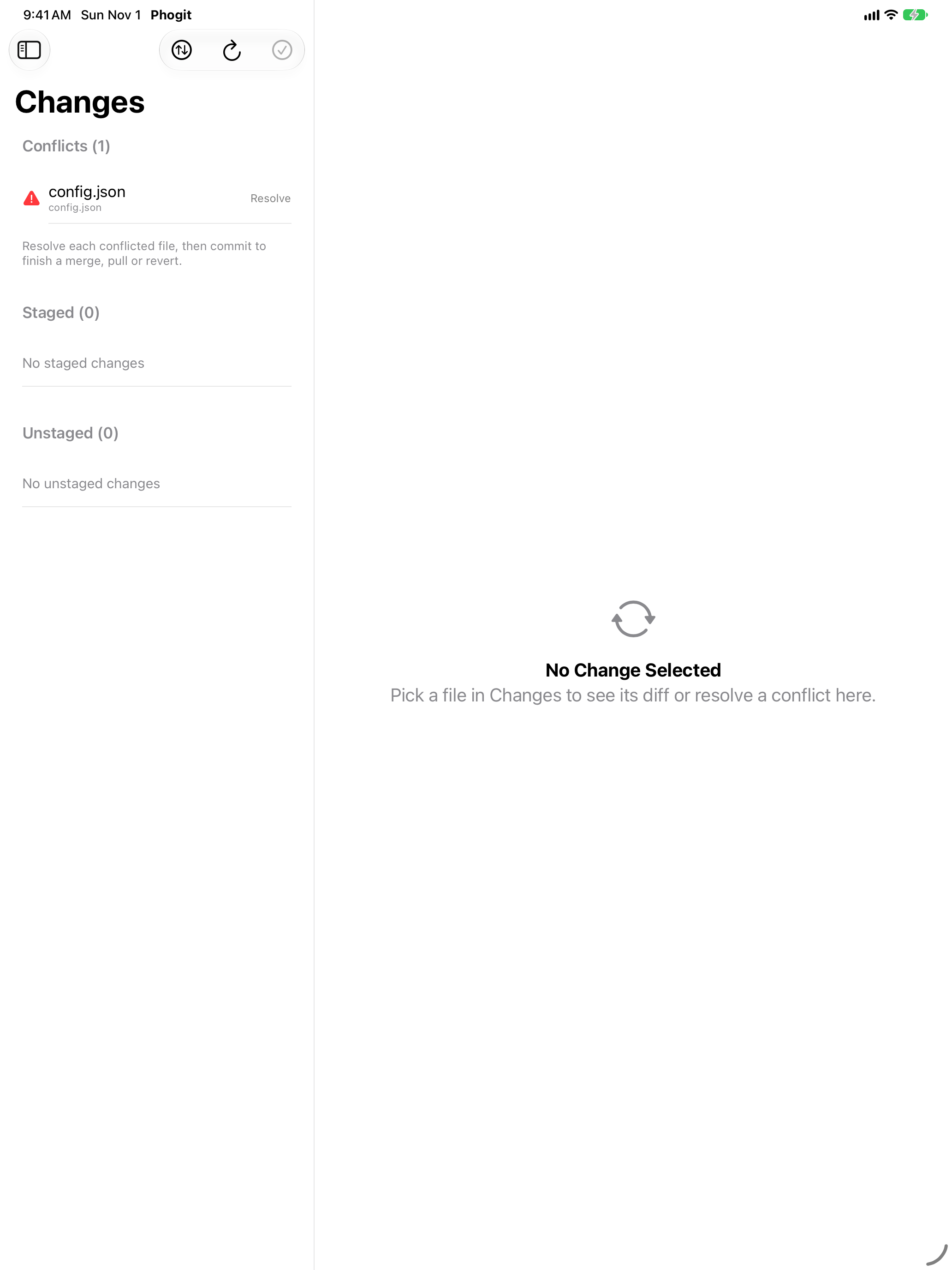
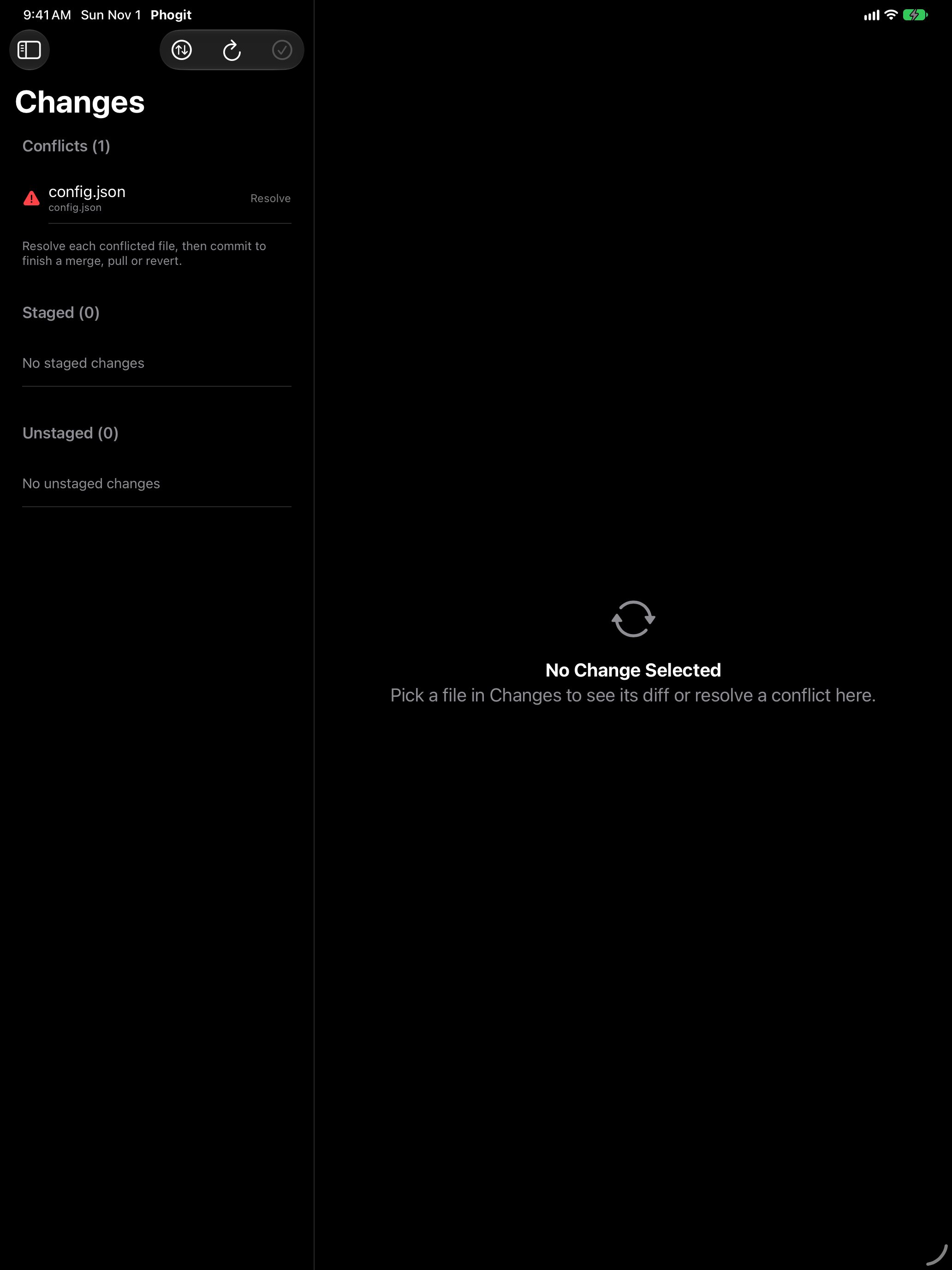
- switches to the Changes tab, where a Conflicts section lists each conflicted file with a red warning icon and Resolve.
Commit stays unavailable until every conflict is resolved.



Resolving a file
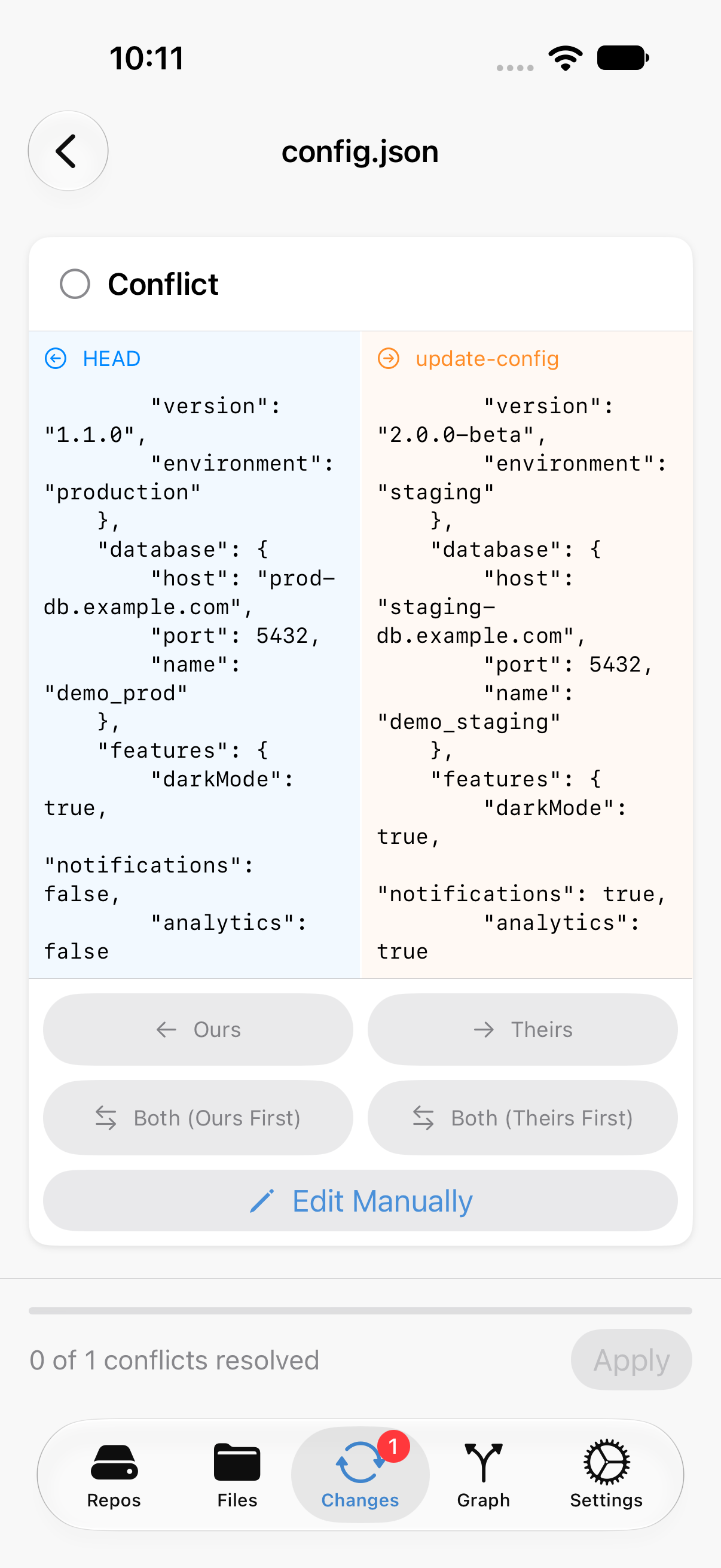
Tap a conflicted file to open the merge tool. (On iPad it opens in the detail column instead; see On iPad.) Each conflict appears as a card with two versions side by side, each headed with the name from git’s conflict markers:
- Ours (left, usually headed HEAD): the version on your current branch.
- Theirs (right, headed with the incoming branch’s name): the version from the branch you’re merging or pulling.
For each conflict, choose one:
| Button | Result |
|---|---|
| Ours | Keep your version. |
| Theirs | Keep the incoming version. |
| Both (Ours First) | Keep both, yours first. |
| Both (Theirs First) | Keep both, theirs first. |
| Edit Manually | Write your own combination of the two. |
A progress bar at the bottom counts the conflicts you’ve resolved in the file, for example 0 of 1 conflicts resolved. When they’re all done, tap Apply. Phogit writes the resolved file, marks it resolved and stages it, and the file leaves the Conflicts section.

Ours or Theirs is usually enough when one side is clearly right. When both sides added something you want to keep, start with one of the Both options, then use Edit Manually to tidy up.
On iPad
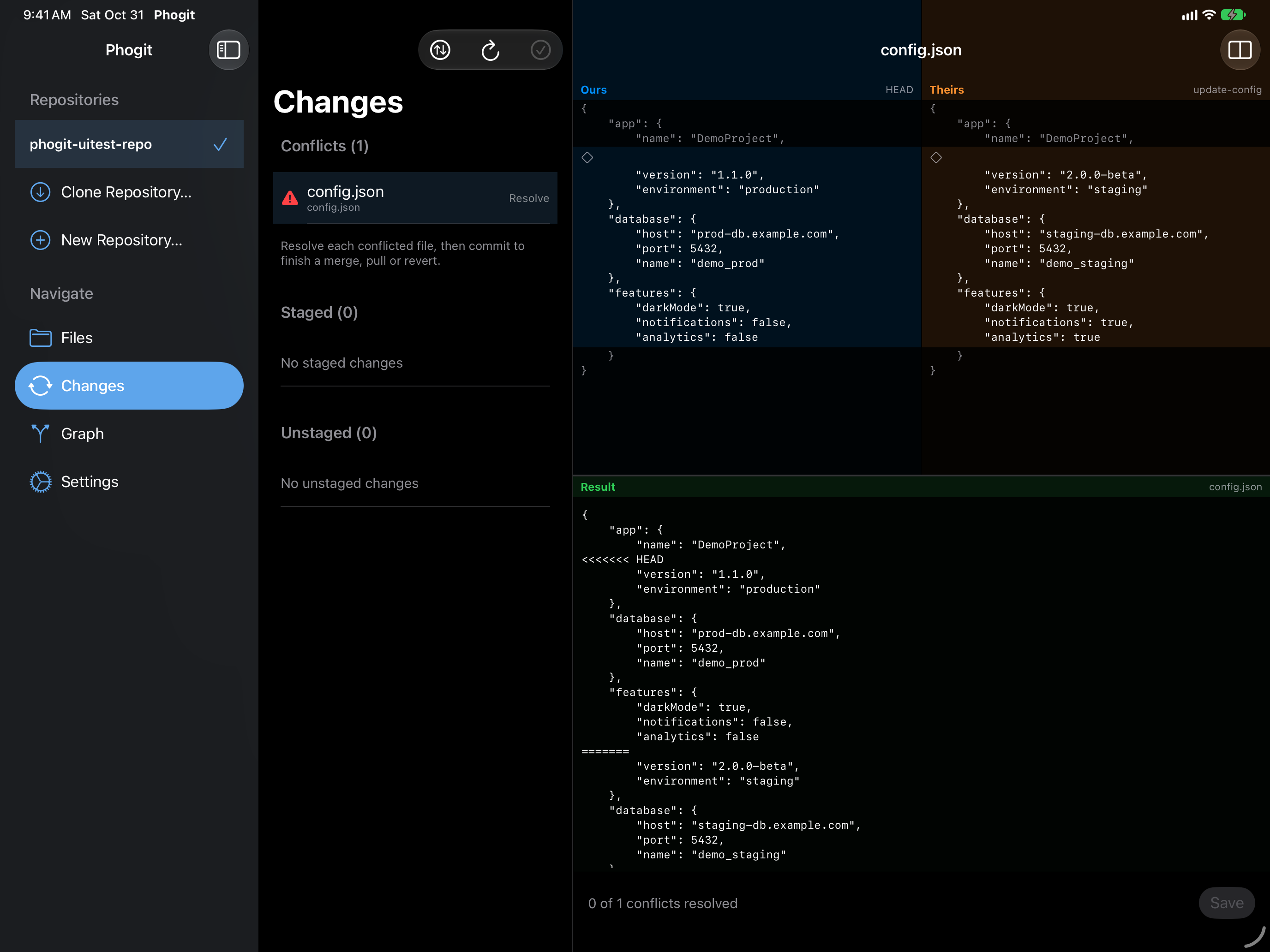
On iPad, tapping a conflicted file in Changes opens it in the detail column, beside the changes list, as a three-pane editor: Ours and Theirs side by side at the top, and an editable Result below. Tap a highlighted conflict in Ours or Theirs to take that version into the result, or edit the result directly. When no conflict markers are left, tap Save.
The Merge Mode menu in the toolbar switches between the 3-Pane Editor and the Hunk Chooser described above. Your choices so far are kept when you switch.


Files the tool can’t open
Binary files, such as images, and files with no conflict markers left can’t be merged in the tool. Phogit shows Can’t Open Conflict with a Mark as Resolved button instead, which stages the file exactly as it is on disk.
For a conflicted binary file, put the version you want in place first, for example by importing it in the file browser or replacing it through the Files app, then tap Mark as Resolved. If you already fixed a text file by hand in the editor, Mark as Resolved is all that’s left to do.
Finishing the merge
When the Conflicts section is empty, the merge is ready to complete:
- Check the Staged list. Your resolved files are there along with the rest of the merge.
- Tap Commit, write a message, and commit. This creates the merge commit (or, after a revert, the revert commit).
- Push when you’re ready to share it.
After a stash, the resolved files are your uncommitted changes again: commit them whenever you’re ready. Phogit kept the stash, so drop it from Stashes… once you don’t need it.