Repositories
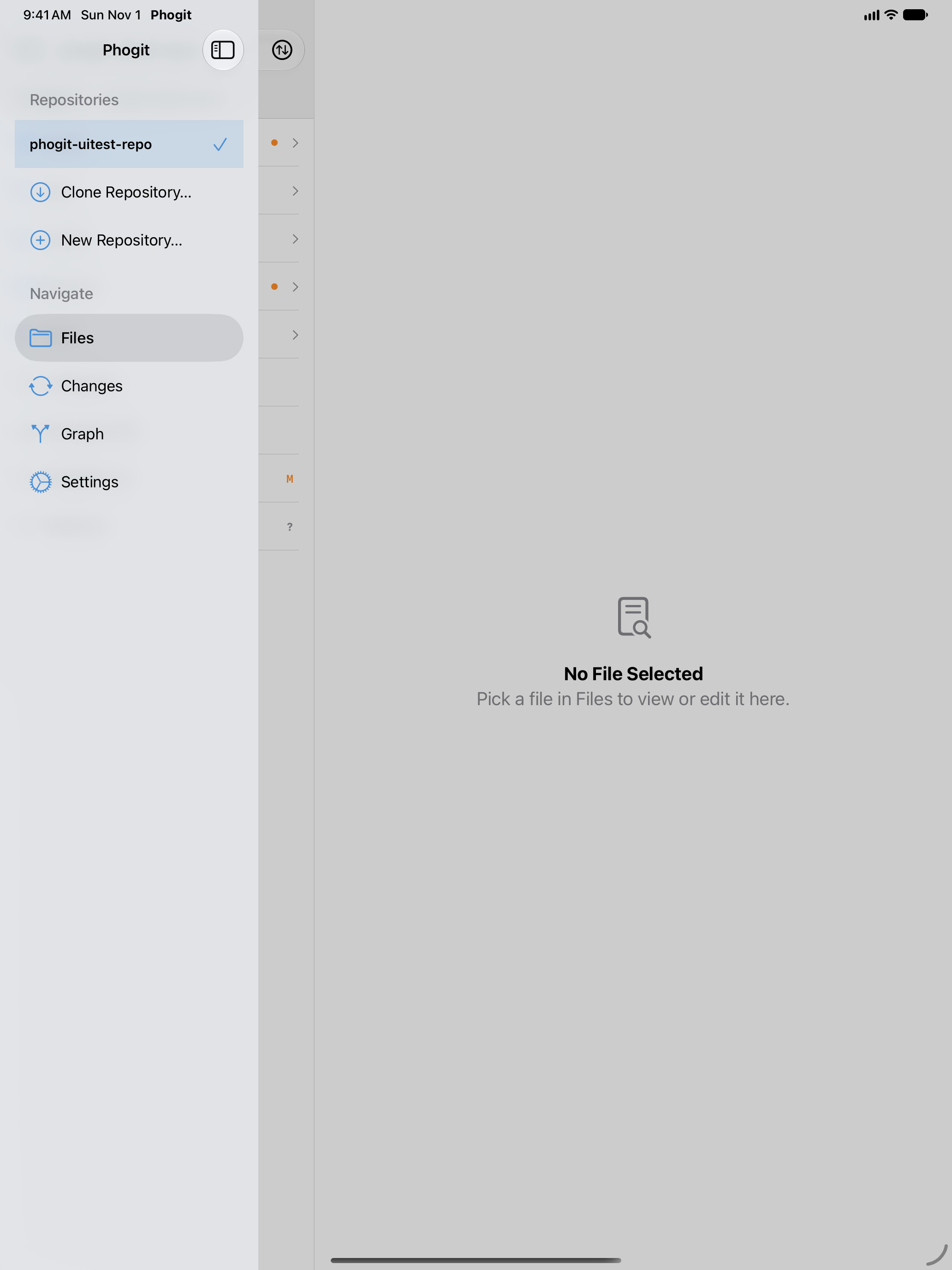
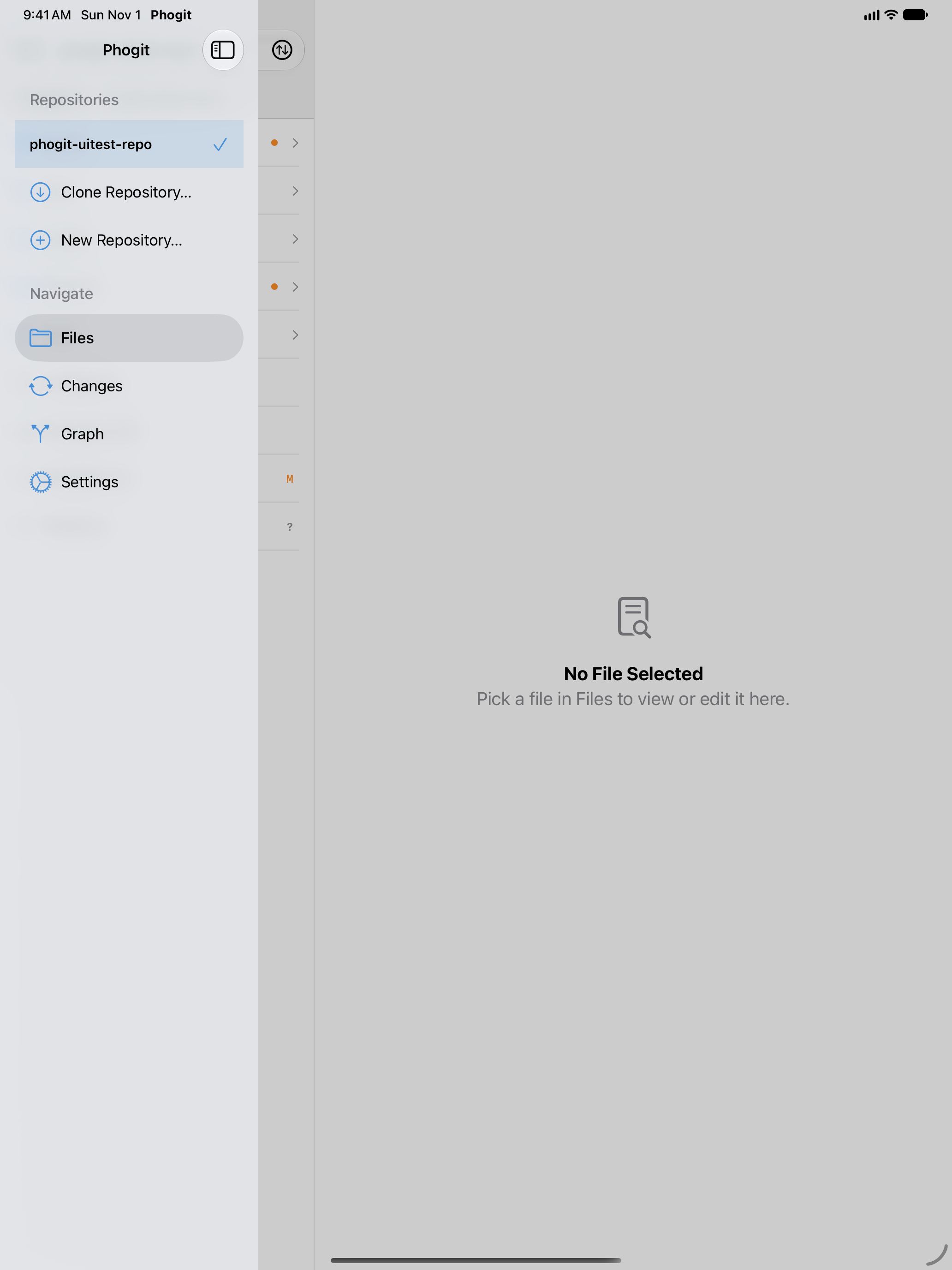
The Repos tab lists the repositories on your device. On iPad, they’re the Repositories section of the sidebar.
The repository list
Tap a repository to open it. Phogit switches to the Files tab and puts a checkmark next to the open repository. Files, Changes and Graph all work on the open repository.




If a repository’s folder was moved or deleted, for example in the Files app, its row says Folder not found. Remove it from the list, or clone it again.
If Phogit closed in the middle of a git operation, such as a commit, git may have left a lock file that blocks further changes. Phogit removes it the next time you open the repository and briefly shows Cleaned up an interrupted operation (index.lock).
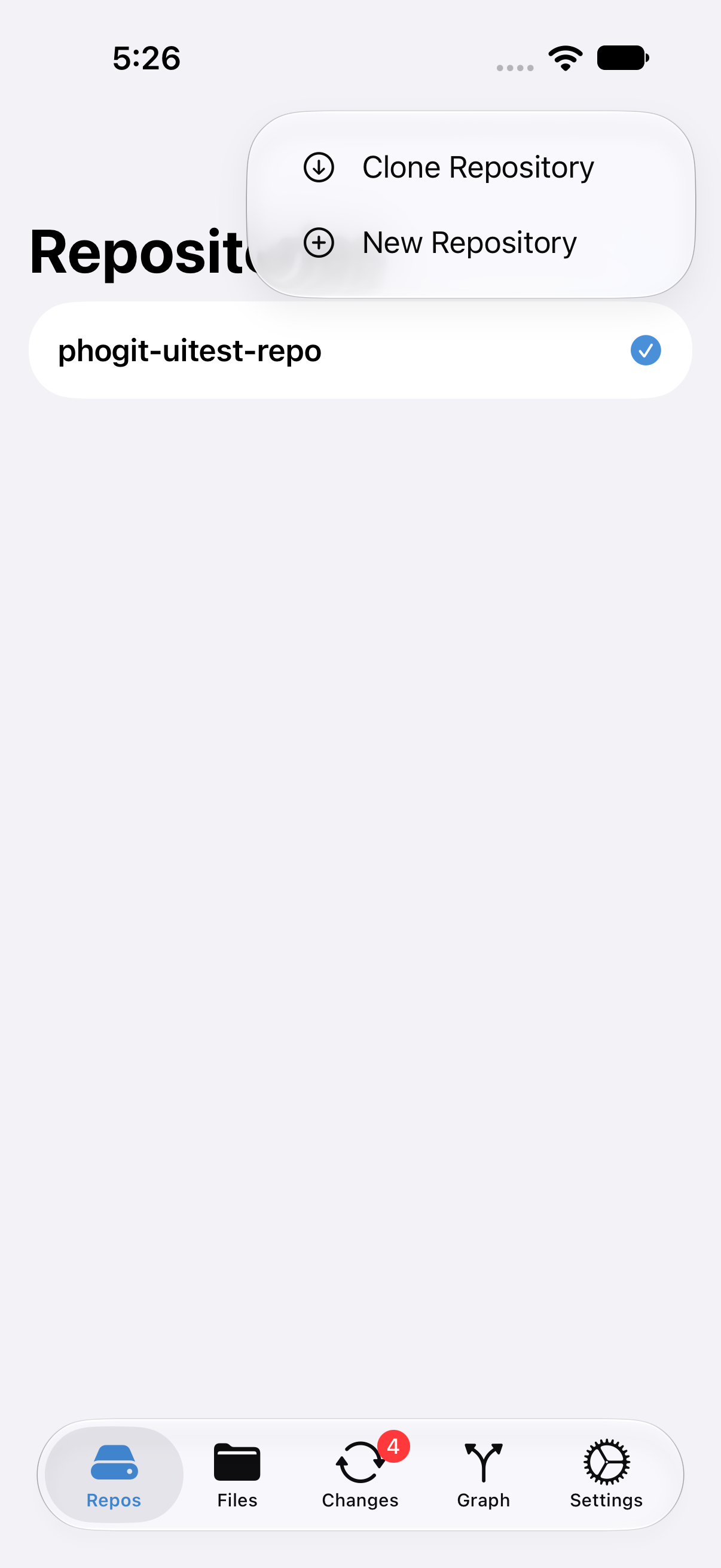
The + button at the top right offers Clone Repository and New Repository. While the list is empty, the same choices are the Clone and New buttons in the middle of the screen. On iPad, they’re the Clone Repository… and New Repository… rows at the end of the sidebar’s list.


Clone a repository
- Tap + › Clone Repository.
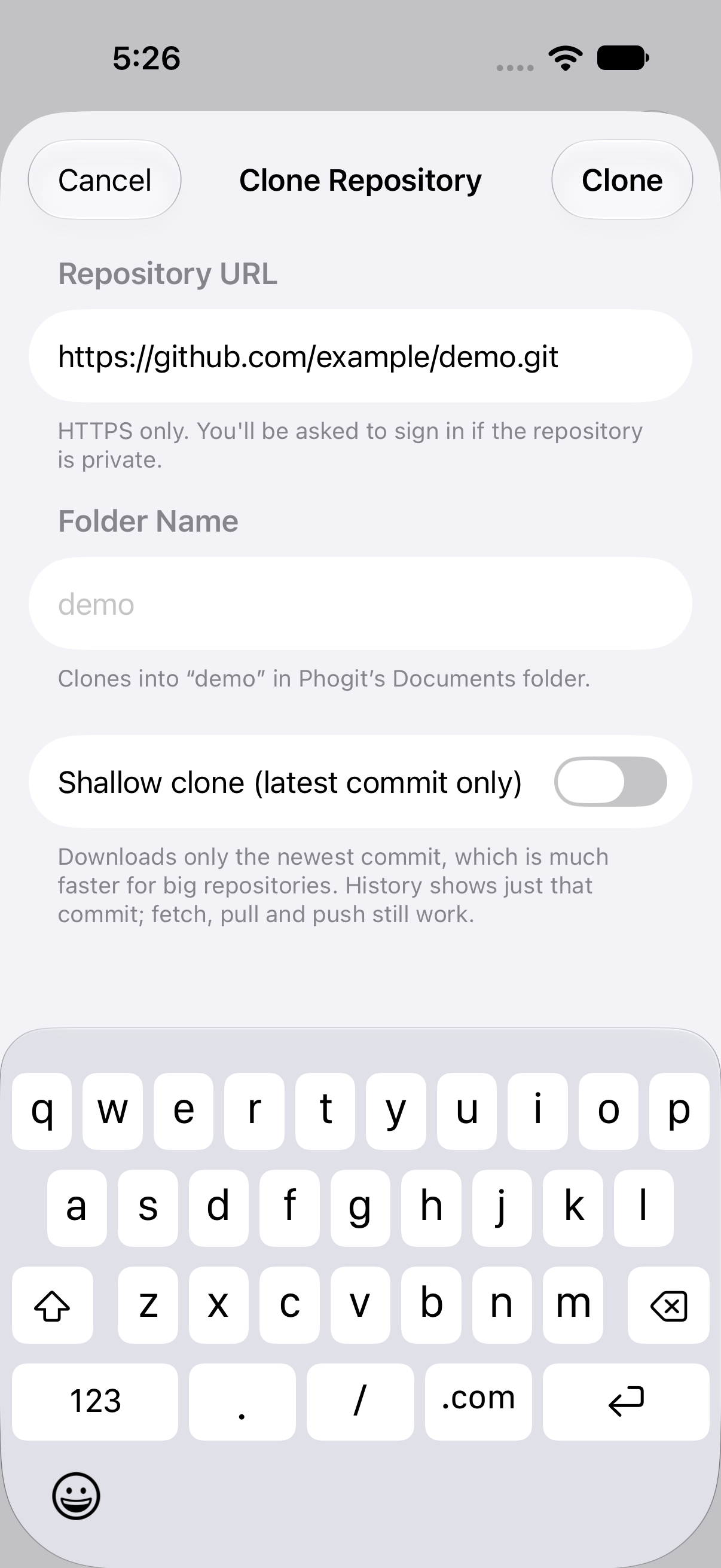
- Enter the repository’s HTTPS or SSH URL, for example
https://github.com/octocat/Hello-Worldorgit@github.com:octocat/Hello-World.git. - Optionally, change the Folder Name. It starts out from the URL, and the note under it shows which folder the clone goes into.
- Turn on Shallow clone (latest commit only) if you don’t need the history. See Shallow clones.
- Tap Clone.
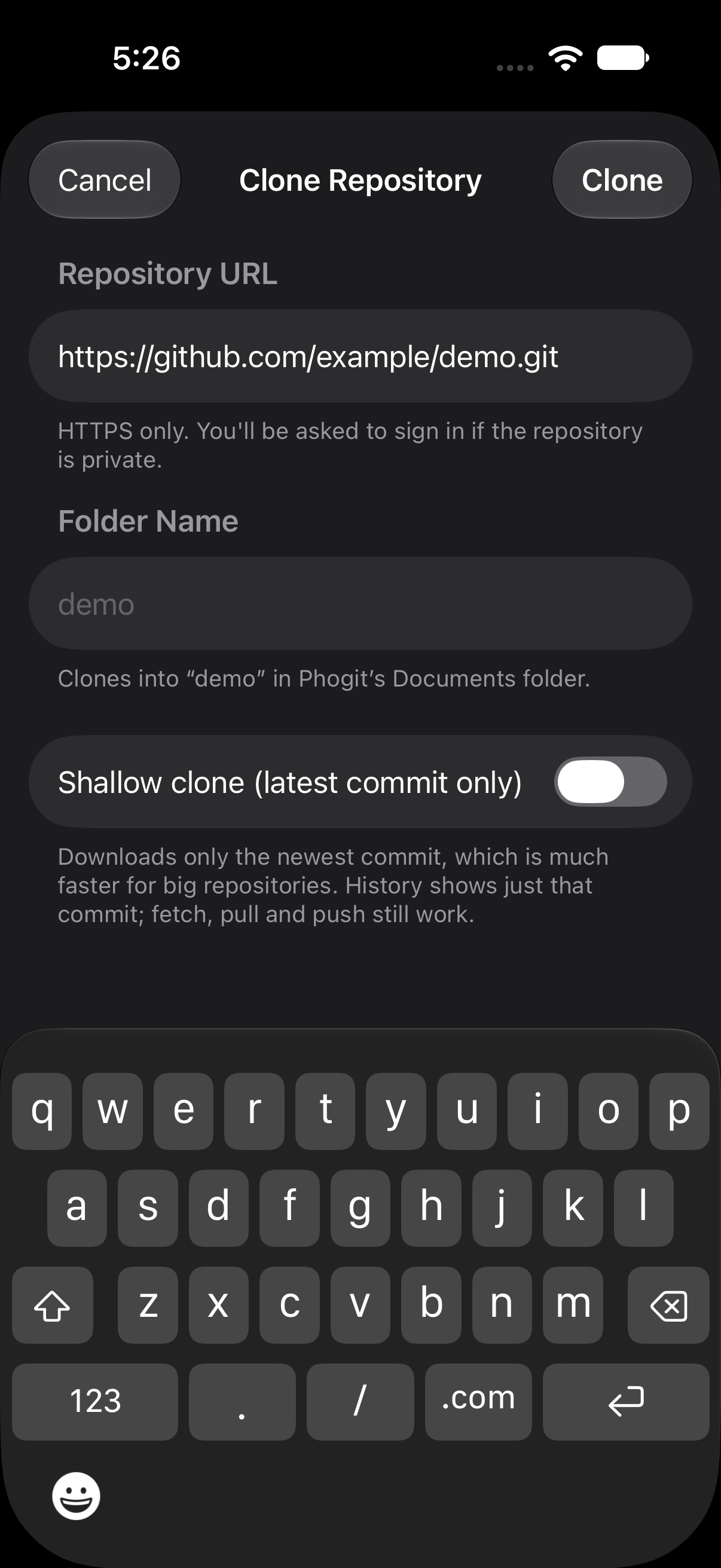


Phogit shows progress while it downloads; tap Stop to cancel. When the clone finishes, Phogit opens the repository on the Files tab. If you switch to another app, the clone keeps going for a short while. If iOS ends Phogit’s background time first, the clone is cancelled as if you’d tapped Stop.
Public repositories clone without an account. Private repositories need a token or an SSH key:
- With an HTTPS URL, Phogit shows a sign-in sheet if the server asks for credentials, or you can add a token beforehand in Settings › Accounts & Tokens. See Authentication.
- With an SSH URL (
git@host:owner/repo.gitorssh://…), Phogit signs in with your SSH key. If you don’t have one yet, the sheet offers to create one and shows the public key to add to your host. The first time you connect to a server, Phogit asks you to check its fingerprint. See Clone over SSH.
You can also start a clone by sharing a repository page from Safari, or from a phogit://clone link. See iOS Integration.
Shallow clones
A shallow clone downloads only the latest commit, not the repository’s whole history. It’s much faster for big repositories, and fetch, pull and push still work. The commit graph then shows only that commit, with a Load Full History button to download the rest.
Create a repository
- Tap + › New Repository.
- Enter a name, such as
my-project. - Tap Create.
Phogit creates an empty git repository in its Documents folder and opens it. The default branch is main; it appears once you make the first commit. To add files, use New File or Import from Files in the file browser, then stage and commit them.
A new repository has no remote. To push it to your host, create an empty repository there, add its URL in Remotes…, and push. See Publish a repository you created.
Remove a repository
Swipe left on a repository and tap Remove, or long-press it and choose Remove…. Phogit asks what to do with the files:
- Remove from List takes the repository out of Phogit’s list but keeps its folder, which you can still reach in the Files app.
- Delete Files permanently deletes the folder, including any uncommitted or unpushed work in it.
Neither choice touches the copy on your git host.
Where repositories live
Each repository is an ordinary folder in Phogit’s Documents folder on your device. It appears in the Files app under On My iPhone › Phogit or On My iPad › Phogit (see iOS Integration), and it’s included in your device backups (iCloud Backup or a computer backup) if backups are on.
Deleting the Phogit app deletes its repositories, along with anything you haven’t pushed.