Update Docs on the Go
Write a README section, add an image, and push it for review
Your project’s README is missing a section, and you’ve got a screenshot on your phone that would explain it nicely. Here’s how to write it, check it, and send it off for review without a computer.
You’ll need a token with write access to the repository.
1. Start from the latest version
Open the repository in the Repos tab, tap the sync button (two arrows) and choose Pull.
2. Make a branch
Tap the branch button at the top of the Files tab to open Branches, tap + (New Branch), and call it something like docs-setup-section. You’re now working on that branch. See Branches & Sync.
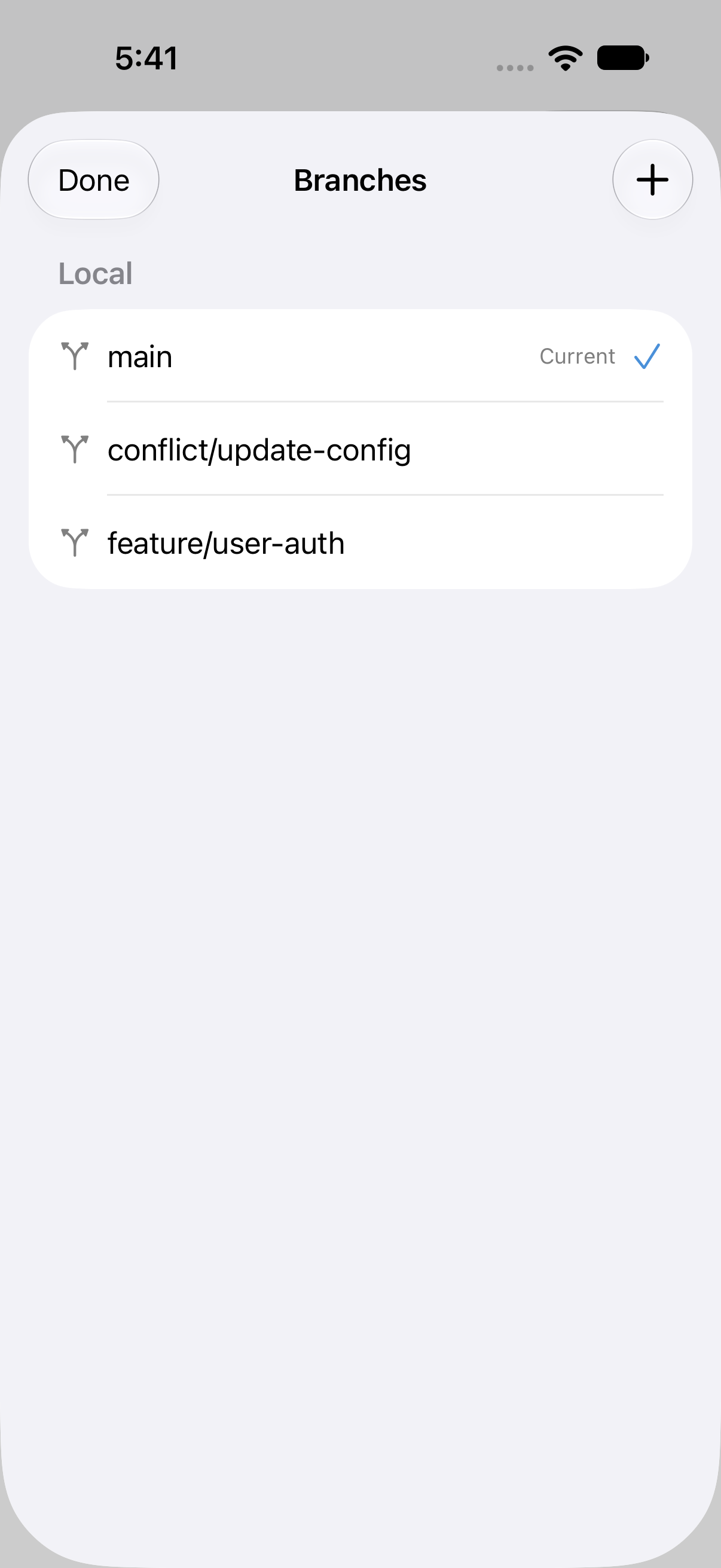
3. Add the image
Go to the folder where the project keeps images, for example docs/images. Use the + menu’s Import from Files to bring in the screenshot from Photos (save it to Files first) or iCloud Drive. Long-press it and choose Rename… if it needs a better name. See Managing Files.
4. Write the section
Open README.md and add your section, including a link to the image, for example .
Switch to Preview to check headings, lists, code blocks and tables, then back to Source to keep writing. Your place and undo history are kept. See Preview Modes.

5. Stage just what belongs
In the Changes tab, the README and the new image are under Unstaged. Tap the README to check its diff.
If you also fixed something unrelated in the same file, stage only the hunks for the new section and leave the rest for another commit. Stage the image with its + button.

6. Commit
Tap Commit (the checkmark), write a message such as “Add setup section to README”, and tap Commit.
7. Push and open a pull request
Tap the sync button › Push… and tap Push. Then open the repository on your host in Safari, which will offer to open a pull request for the branch you just pushed.
Phogit 1.0 doesn’t create or review pull requests in the app; that’s on the roadmap. Reviewers will see your change on the host as usual.