iPad Layout
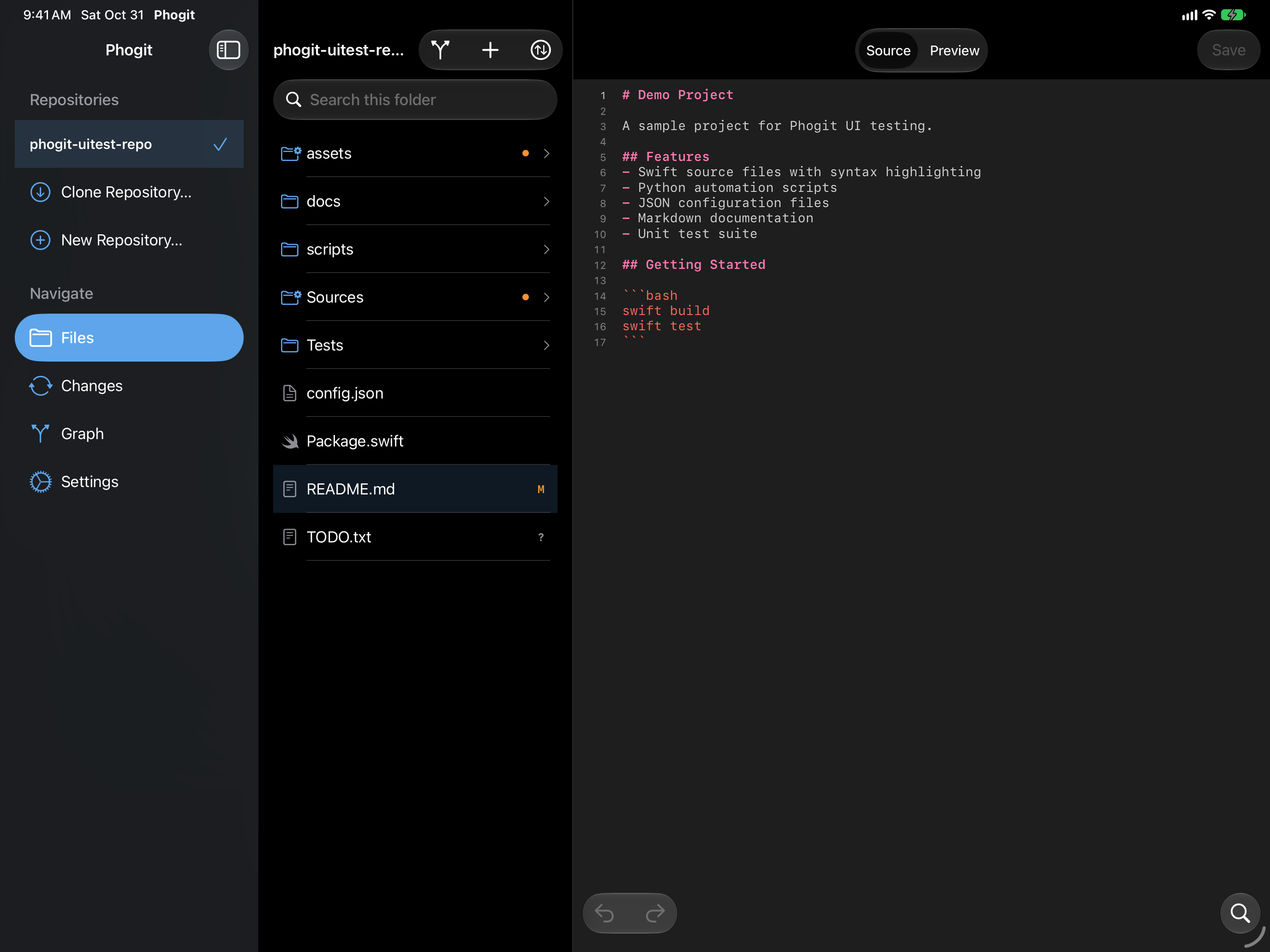
On iPad, Phogit uses a three-column split layout, so you can pick a repository, browse its files and edit a file on one screen.
The split layout
| Column | What’s in it |
|---|---|
| Sidebar (left) | Your Repositories, with Clone Repository… and New Repository… at the end of the list, and a Navigate section: Files, Changes, Graph and Settings. |
| Content (middle) | Whatever you picked under Navigate: the file browser, the changes list, the commit graph or Settings. |
| Detail (right) | The editor for the file you selected in Files, or the diff or merge tool for the file you selected in Changes. |
Tap a repository in the sidebar to open it; the open repository has a checkmark. Swipe left on a repository, or long-press it, to remove it.
A file you pick in Files opens in the detail column while the file list stays put, so you can move from file to file. Changes works the same way: tap a file there to see its diff in the detail column, or the three-pane merge editor if it has conflicts.


When the layout changes
In portrait, the sidebar is tucked away so the file list and the editor share the screen. Tap the sidebar button at the top left to slide it in.


The split layout needs room. In a narrow window, for example in Split View next to another app or in a small Stage Manager window, Phogit switches to the same tab bar as on iPhone, and back again when the window is wide enough.
To use the tab bar all the time, turn off Settings › Layout › Use Split Layout.
Resolving conflicts on iPad
Tap a conflicted file in Changes and it opens in the detail column in a three-pane merge editor. Until you pick a file, the detail column shows No Change Selected. See Conflict Resolution.


Keyboard shortcuts
With a hardware keyboard, such as a Magic Keyboard, the editor’s shortcuts work as on iPhone. See Code Editor.